Pages

Affichage des articles dont le libellé est CSS. Afficher tous les articles

Flex en action

Code HTML


Tapez le code HTML suivant :

Pensez à utiliser .parent>.enfant*4>.enfant suivi de TAB dans votre éditeur (Emmet)

Code CSS


tapez le code CSS suivant :

Ajoutons la magie du calcul des marges


Ajoutons les propriétés de flex au contenu des blocs


Ajoutons la propriété de flexibilité aux blocs


Pensez à redimensionner votre fenêtre.

attribut data-


HTML permet d'associer des données directement dans un élément HTML à l'aide des attributs data-*.

Nous pouvons donc stocker et manipuler de l’information directement.

Voici les 7 selecteurs disponibles.

[data-value] {
  /* Attribute exists */
}

[data-value="foo"] {
  /* Attribute has this exact value */
}

[data-value*="foo"] {
  /* Attribute value contains this value somewhere in it */
}

[data-value~="foo"] {
  /* Attribute has this value in a space-separated list somewhere */
}

[data-value^="foo"] {
  /* Attribute value starts with this */
}

[data-value=|"foo"] {
  /* Attribute value has this in a dash-separated list somewhere */
}

[data-value$="foo"] {
  /* Attribute value ends with this */
}

Voici un exemple.


+ infos

Manipulation en JS


La propriété HTMLElement.dataset en lecture seule permet l'accès, à la fois en mode lecture et écriture, à tous les attributs de données sur mesure (data-*) définis sur l'élément.


chaîne = element.dataset.nomEnCamelCase;
element.dataset.nomEnCamelCase = chaîne;
Notre donc, les deux façons d'obtenir les valeurs stockées dans prof1

<li id="first" data-nom-prenom="denis dupont">prof1</li>

console.log(` ${document.getElementById("first").getAttribute("data-nom-prenom")}`) ;

console.log(` ${document.getElementById("first").dataset.nomPrenom}`) ;

[attribut css]

Voici la liste des Selecteurs CSS.


Selector
Example Example description
.class .intro Selects all elements with class="intro"
#id #firstname Selects the element with id="firstname"
* * Selects all elements
element p Selects all <p> elements
element,element div, p Selects all <div> elements and all <p> elements
element element div p Selects all <p> elements inside <div> elements
element>element div > p Selects all <p> elements where the parent is a <div> element
element+element div + p Selects all <p> elements that are placed immediately after <div> elements
element1~element2 p ~ ul Selects every <ul> element that are preceded by a <p> element
[attribute] [target] Selects all elements with a target attribute
[attribute=value] [target=_blank] Selects all elements with target="_blank"
[attribute~=value] [title~=flower] Selects all elements with a title attribute containing the word "flower"
[attribute|=value] [lang|=en] Selects all elements with a lang attribute value starting with "en"
[attribute^=value] a[href^="https"] Selects every <a> element whose href attribute value begins with "https"
[attribute$=value] a[href$=".pdf"] Selects every <a> element whose href attribute value ends with ".pdf"
[attribute*=value] a[href*="w3schools"] Selects every <a> element whose href attribute value contains the substring "w3schools"
:active a:active Selects the active link
::after p::after Insert something after the content of each <p> element
::before p::before Insert something before the content of each <p> element
:checked input:checked Selects every checked <input> element
:disabled input:disabled Selects every disabled <input> element
:empty p:empty Selects every <p> element that has no children (including text nodes)
:enabled input:enabled Selects every enabled <input> element
:first-child p:first-child Selects every <p> element that is the first child of its parent
::first-letter p::first-letter Selects the first letter of every <p> element
::first-line p::first-line Selects the first line of every <p> element
:first-of-type p:first-of-type Selects every <p> element that is the first <p> element of its parent
:focus input:focus Selects the input element which has focus
:hover a:hover Selects links on mouse over
:in-range input:in-range Selects input elements with a value within a specified range
:invalid input:invalid Selects all input elements with an invalid value
:lang(language) p:lang(it) Selects every <p> element with a lang attribute equal to "it" (Italian)
:last-child p:last-child Selects every <p> element that is the last child of its parent
:last-of-type p:last-of-type Selects every <p> element that is the last <p> element of its parent
:link a:link Selects all unvisited links
:not(selector) :not(p) Selects every element that is not a <p> element
:nth-child(n) p:nth-child(2) Selects every <p> element that is the second child of its parent
:nth-last-child(n) p:nth-last-child(2) Selects every <p> element that is the second child of its parent, counting from the last child
:nth-last-of-type(n) p:nth-last-of-type(2) Selects every <p> element that is the second <p> element of its parent, counting from the last child
:nth-of-type(n) p:nth-of-type(2) Selects every <p> element that is the second <p> element of its parent
:only-of-type p:only-of-type Selects every <p> element that is the only <p> element of its parent
:only-child p:only-child Selects every <p> element that is the only child of its parent
:optional input:optional Selects input elements with no "required" attribute
:out-of-range input:out-of-range Selects input elements with a value outside a specified range
:read-only input:read-only Selects input elements with the "readonly" attribute specified
:read-write input:read-write Selects input elements with the "readonly" attribute NOT specified
:required input:required Selects input elements with the "required" attribute specified
:root :root Selects the document's root element
::selection ::selection Selects the portion of an element that is selected by a user
:target #news:target Selects the current active #news element (clicked on a URL containing that anchor name)
:valid input:valid Selects all input elements with a valid value
:visited a:visited Selects all visited links


CSS cas des noms avec des caractères spéciaux (./

Pour référencer un identifiant avec un caratère spécial, il faut utiliser le caractère \.

Exemple :
HTML :    <div id="denis.dupont">
CSS     :   #denis\.dupont

Sans l'utilisation de \, #denis.dupont selectionne l'identifiant denis de classe dupont


Voici une utilisation avancée de cette notation ; notez le double \\ dans le content :
JS Bin
#denis\.dupont:before{
  color : red;
  content :  " id=" attr(id) ;
}

#denis\.dupont:after{
  content :  " selectionner avec #denis\\.dupont" ;
}

Menu

On peut écrire une règle unique pour la mise en place du sous menu :

Tous les sous menu sont à hauteur zéro sauf celui sur lequel je suis ! 

li:not(:hover) ul{
        height: 0;
        overflow: hidden;
}

En ajoutant de l'animation !

Le conteneur et son comportement

Cette animation pose le problème du choix du conteneur d'un bloc.


Modification du html


<div id="conteneur">

    <div id="a">
    <div id="b">
    <div id="c">
<div>


Modification du CSS
#conteneur{
    position: relative;
}


#b
{
    position: absolute;
}

Display : absolute

Simuler

  1. sort du flux (disparaît)
  2. position au dessus à la position indiquée

Situation de départ

le code HTML est 
<div id="a"> Bloc A </div>
<div id="b"> Bloc B </div>
<div id="c"> Bloc C </div>

Le code CSS est


div {
    border: 2px dotted black;
    margin :2px;
}


Modifications

Position absolue

#b{
    position: absolute;
}

display : Float

Il est parfois difficile de comprendre les conséquences de la modification de la valeur d'une propriété.

Nous proposons des animations pour comprendre le résultat obtenu.
Pour chaque animation nous partons de la situation suivante.

Situation de départ

le code HTML est
<div id="a"> Bloc A </div>
<div id="b"> Bloc B </div>
<div id="c"> Bloc C </div>

Le code CSS est

div {
    border: 2px dotted black;
    margin :2px;
}


Modifications

Float left

Une modification est apportée au CSS. le bloc "#a" passe en position  flottante.


#a{
    float:left;
}

action

Les trois blocs sont contenus dans un div de taille fixe.

Nous fixons la taille du conteneur
                                                  taille < taille(a+b+c)


Modification du html

<div id="conteneur">

    <div id="a">
    <div id="b">
    <div id="c">
<div>

Modification du CSS


#conteneur {
    width250px;
}


div{
    ...
    float:left;    
}
En action

Autre cas

#a,#c{
    float:left;
}

TD CSS

Créer du CSS de base

Centrer : easy now !

      html, body {
        height: 100%;
      }
      body {
        display: flex;
        align-items: center;
        justify-content: center;
      }
      .container {
        width: 100%;
        text-align: center;
        font-size: 8em;
      }

TD : find the trick !

CSS transitions
  • Info: vision d'Affrique
  • Info: Noir d'eau !
  • Info: Chaumont sur Loire
  • Info: The pape palais
  • Info: Pause café !
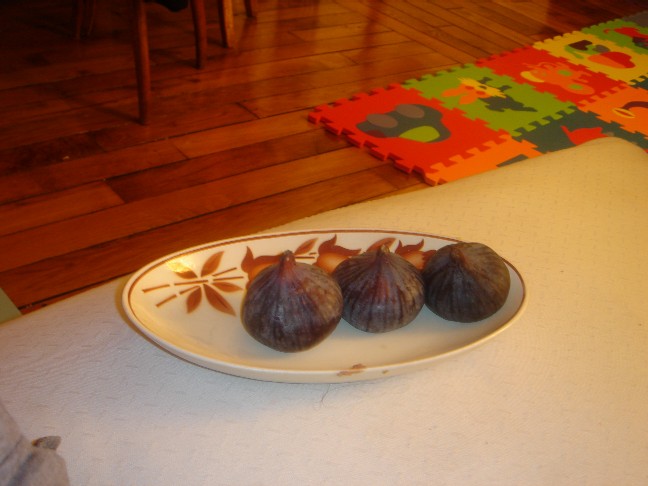
  • Info: Le top du fruit !
  • Info: Allo la terre !
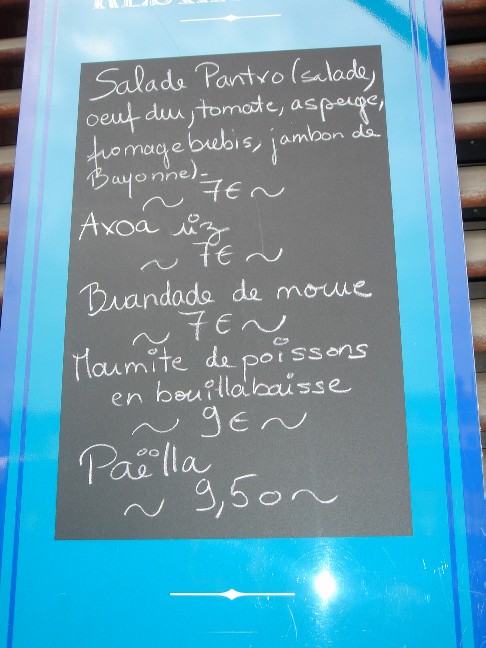
  • Info: Au menu aujourd'hui !
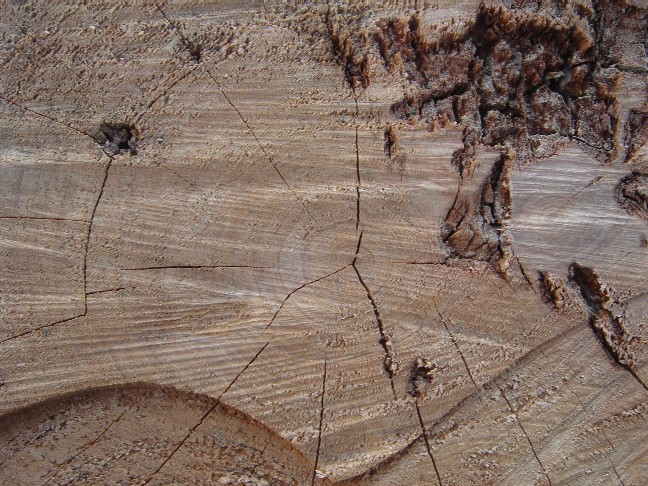
  • Info: Histoire d'arbre.

:nth-child


:nth-child ( pos )
Le style est appliqué à toutes les balises enfants en position pos.

pos = ( 2 )

<body> // second enfant de HTML
<div>
  <h2>1 enfant</h2> 
  <p>2 enfant</p> // second enfant de div
  <h2>3 enfant</h2>
  <h2>4 enfant</h2>
</div>
</body>


p:nth-child ( pos )
Le style est appliqué à toutes balises p enfants en position pos.

pos = ( 2 )

<div>
  <h2>1 enfant</h2> 
  <p>2 enfant</p> // second enfant de div
  <h2>3 enfant</h2>
  <h2>4 enfant</h2>
</div>
</body>


JS Bin on jsbin.com

les sélecteurs : revision

les arguments de querySelectorAll

JS Bin on jsbin.com

zone opaque


TP

box-sizing: border-box;

On voit de plus en plus la règle box-sizing: border-box; appliquée aux balises.

Cliquer sur le test, pour appliquer la règle box-sizing: border-box;

Voir fichier->
Sur l'exemple suivant, les deux blocs de taille respective (60% et 40%) peuvent avoir une bordure à l’intérieur ou à l’extérieur.
Dans le cas d'une bordure à l'extérieur, la somme tille + bordure dépasse les 100% du conteneur. Les blocs sont réparti sur deux lignes. En cliquant sur les blocs, vous mettez soit une bordure extérieure (dépassement-> deux lignes) soit une bordure intérieure (pas de dépassement -> une ligne).

1
2

Règles CSS

Comment écrire le AND de deux classes

<div class="bleu jaune">vert</div>

.bleu.jaune{
  background-color : green;
}

JS Bin on jsbin.com